Region and condition filters
Most tables that display pricing data have their own region and condition dropdown at the top. Use them to look at the same data from a different angle: switch region to compare your market to another, or flip from new to used to see how the used market behaves.
Changes made with the region or condition dropdown are temporary. As soon as you reload the page, the table goes back to your site-wide defaults. To change your defaults permanently, set them in your account settings. See the Regional pricing guide for details.
Table settings
The Table settings button (top right of every table) opens a panel where you can configure exactly how the table works for you:
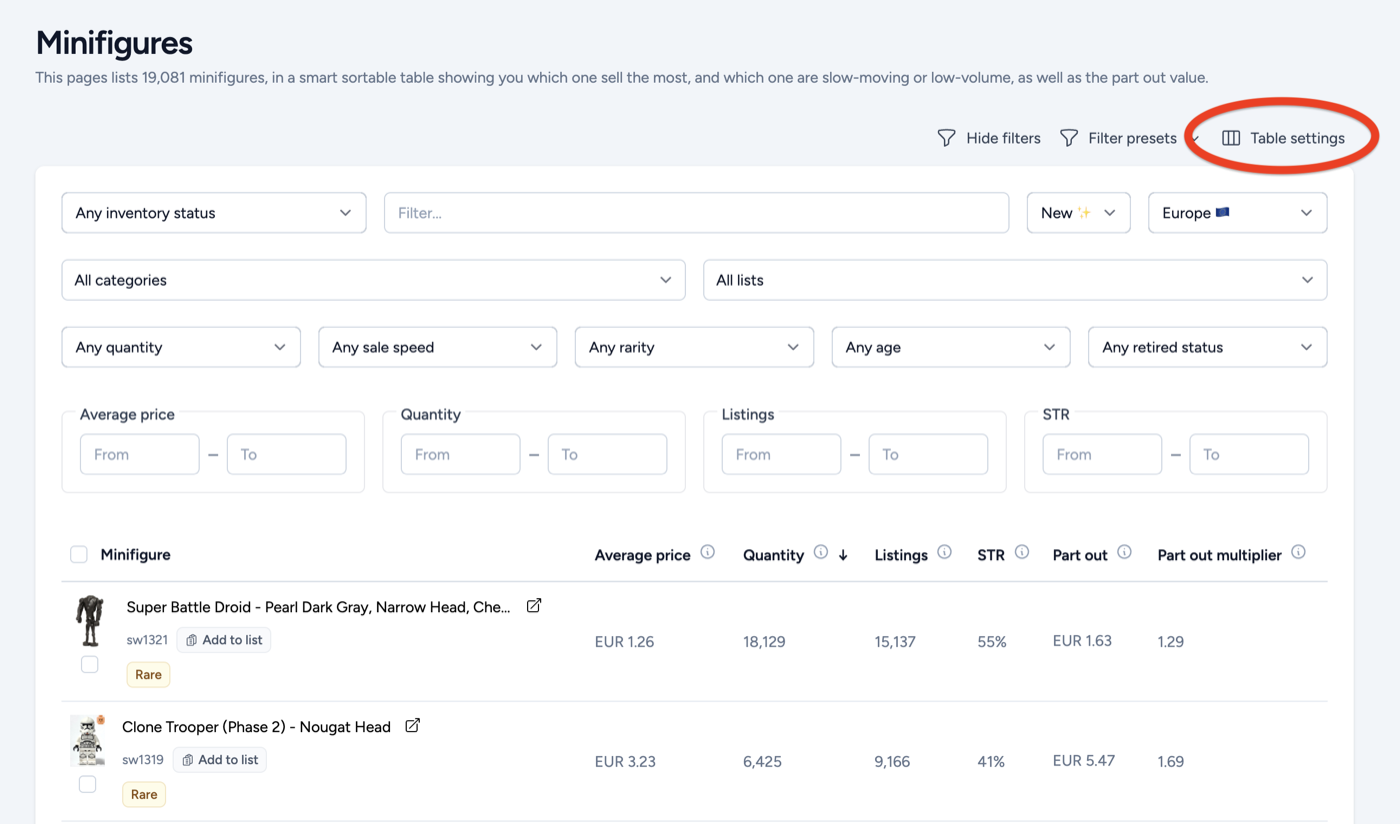
- Enable or disable columns: check the columns you want to be shown, uncheck the ones you don't.
- Reorder columns: drag and drop to put columns in the order that fits your workflow.
- Enable and reorder filters: keep only the filters you actually use, in the order that suits you.
- Plus several other settings like pagination, table width, default sort and more.
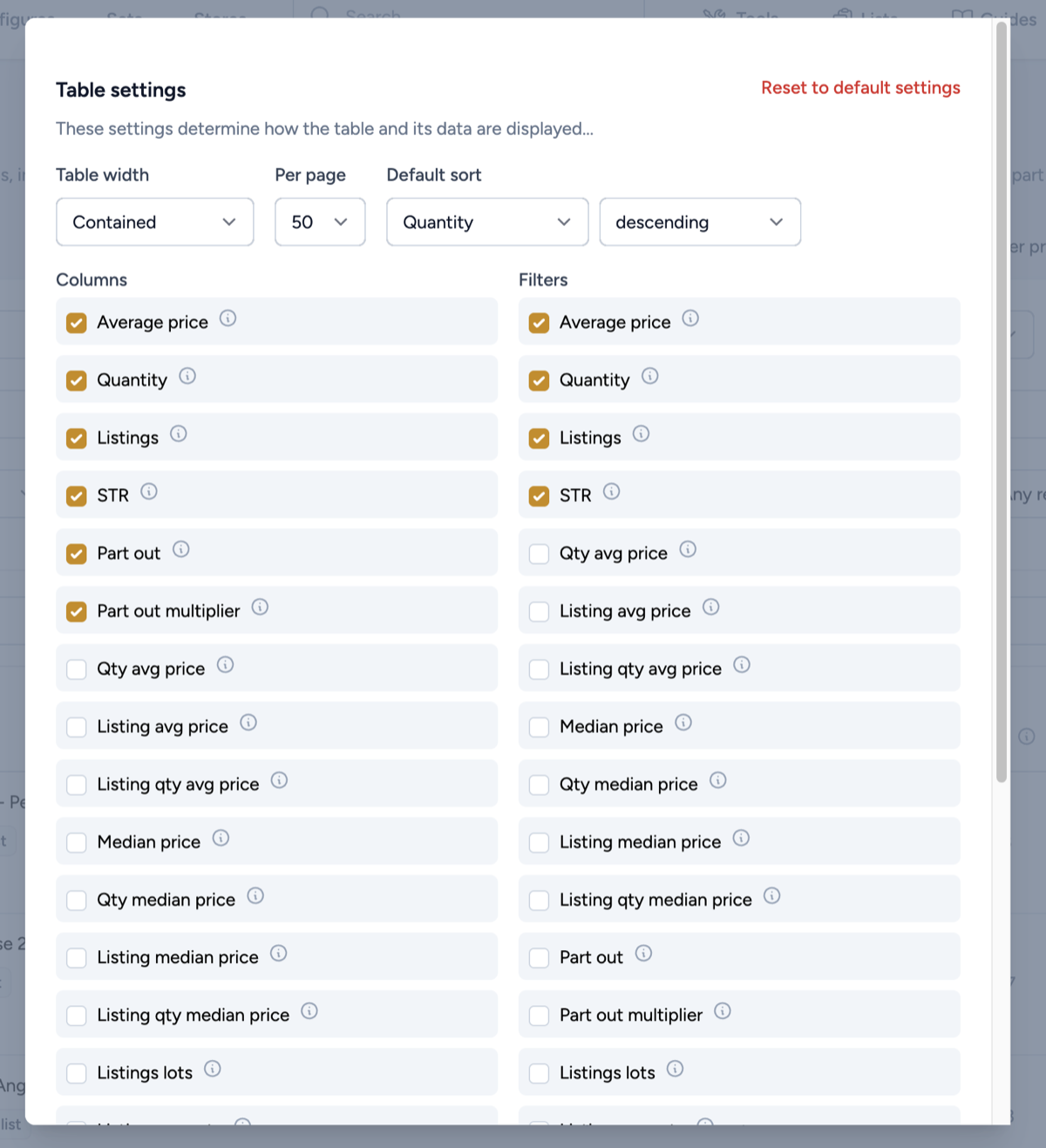
Table settings are saved per table. Configuring the parts list does not affect the inventory table, your smart pricing table, or any other page. Each table remembers its own configuration.
Table width
In the table settings you can choose between two width modes:
- Contained: the table stays inside the page's content area, just like the rest of the app. Easy to read and keeps the layout consistent.
- Full width: the table spans the entire browser window. Useful when you've enabled many columns and want to see as much as possible at a glance.
In either mode, if the columns you've enabled still overflow the available space, the table scrolls horizontally. You can scroll with the trackpad, the scroll bar, or by holding Shift and scrolling vertically with your mouse wheel.
Sorting
Click any sortable column header to sort by it. Click again to flip the direction (ascending or descending). The active sort is indicated by an arrow next to the column name.
If you always want a table to open with a specific sort, set it as the default sort in the table settings. Every time you land on the page, the table will already be sorted the way you want.
Filters
Filters live just above the table. Every change updates the table immediately and adjusts the summary block at the top (where applicable). The available filters depend on the table, but the building blocks are the same across the platform.
Text search
Most tables include a text input to search by part or set number, BrickLink ID or name. Just start typing and the table narrows down as you go.
Range filters
Range filters let you set a minimum, a maximum, or both, for numeric columns like price, sell-through rate, quantity sold, listings, and more. Leave one bound empty to make it open-ended.
Power tip: set the minimum to 0 on a price, sell-through rate or sales-volume filter to exclude items with no data. For example, filtering by "average price ≥ 0" hides parts where BL Metrics has no recent sales recorded, which is often what you want when you're working on real, market-active items.
Category filters
Quick selectors for common ways to slice the data:
- New: items that were released recently.
- Retired: items that are no longer in production.
- Quantity: high, medium or low recent sales volume.
- Sale speed: fast, medium or slow movers based on sell-through rate.
In-your-inventory status
When your store is connected, an extra filter lets you slice the catalog by whether an item is currently in your inventory or not. Useful for quickly answering questions like "which top sellers do I not stock yet?" or "what do I have that's now retired?".
Flippable multi-select filters
Filters for categories, colors and lists are multi-select and flippable. Pick one or several values, then use the toggle to either include the selection or exclude it. For instance, you can show only items in your "to restock" list, or hide every minifig in the "Star Wars" category, in one click.
A green + on the selected value means it is included, so the table shows only those items. Click the value again and it flips to a red −: the selection is now excluded and those items are hidden instead.
Hide filter button
Once you've set your filters, you can collapse the filter bar with the Hide filters button to give the table more vertical space. Your filters stay active, the bar just gets out of the way. Click again to bring it back.
Presets
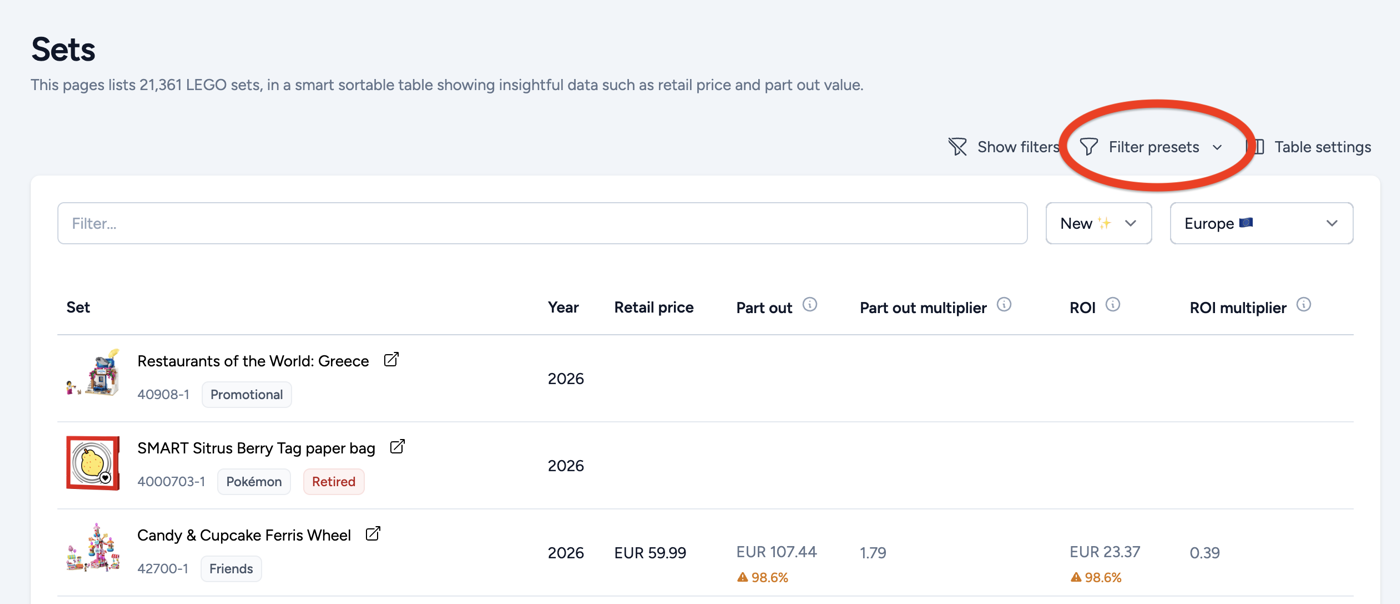
A preset is a saved combination of filters, column order and sort for a given table. Presets let you flip between different views instantly instead of re-configuring filters every time.
Creating, editing and switching presets
From the preset menu at the top of the table:
- Configure your table the way you want, then save it as a preset with a name.
- Click any preset name to switch to that configuration.
- Edit a preset to rename it or update it with your current settings.
- Delete a preset you no longer need.
Default presets
You can mark a preset as your default. When you set a default, opening that page loads the preset's configuration automatically instead of the platform's default view. To remove a default, mark another preset as the default, or unset it directly.
Presets are page-scoped, not global. A preset created on the Parts page only exists on the Parts page. The same goes for defaults: setting a default on Parts does not affect Sets, your Inventory, Smart Pricing or any other table. Each page has its own preset library and its own default.
Putting it all together
The tables in BL Metrics reward a little setup. A typical workflow looks like this: enable the columns you actually use, set up the filters that match how you think (region, condition, quantity, sale speed), save it as a preset, and mark that preset as the default. From then on, every visit to the page lands you exactly where you need to be.