How it works
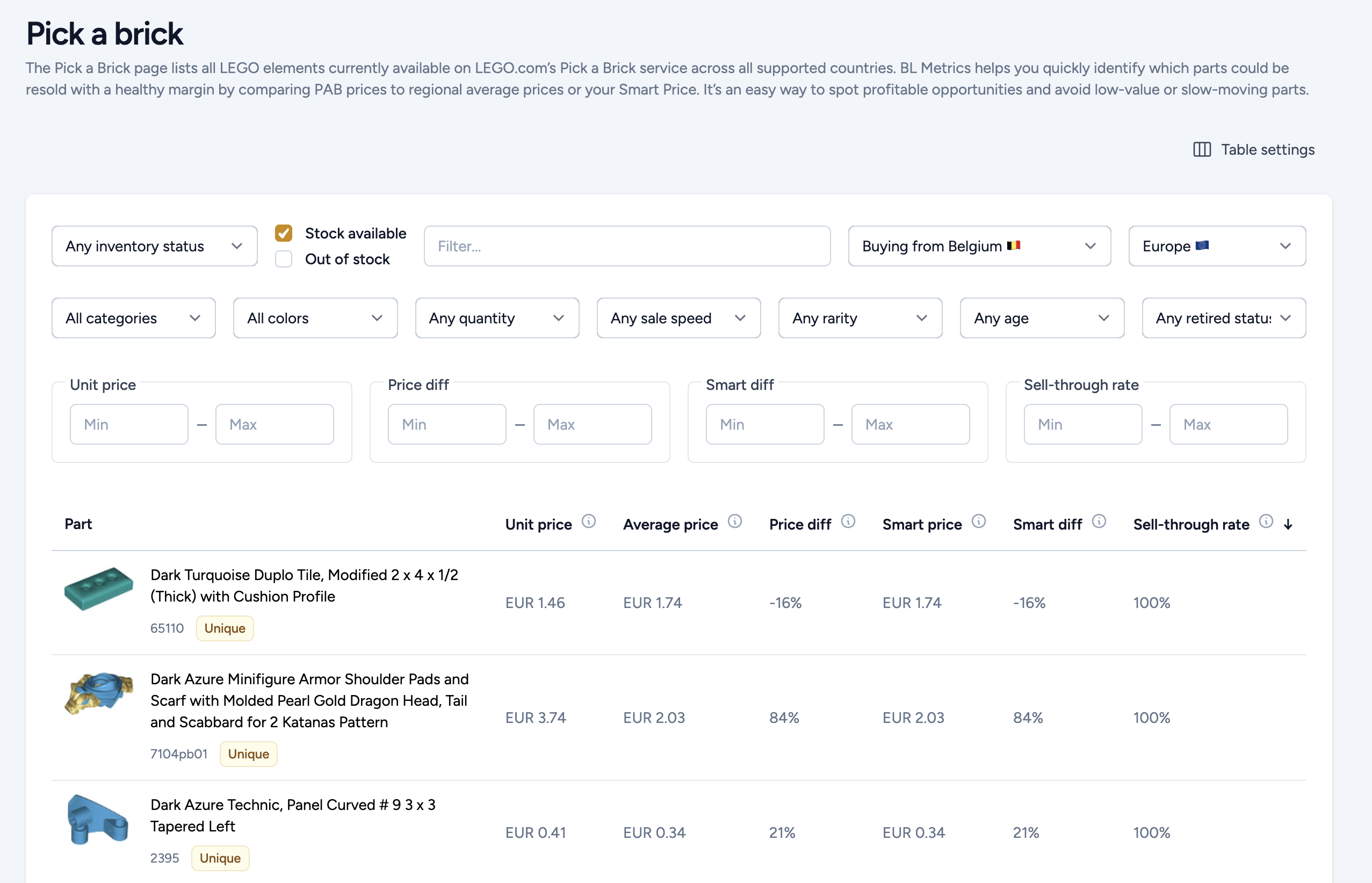
The Pick A Brick page lists all parts currently available on LEGO’s Pick a Brick website for your selected buying region. BL Metrics compares LEGO’s price with both the BrickLink 6‑month average and your Smart Price, helping you instantly see which parts offer the best opportunities.
To get started, select your Pick a Brick region at the top of the page. This controls which LEGO store prices we display. Then verify your Regional Pricing settings so BrickLink price comparisons reflect the market you sell in.
Below the filters, you will see the complete list of parts available for purchase.
Customizing your table
As in all BL Metrics tables, you can fully customize the view using Table Settings. Choose which columns to display, reorder them, and enable additional filters such as quantity, listings, and more.
Understanding the columns
By default, the table includes key metrics to help you identify profitable deals quickly:
- Unit Price: LEGO Pick a Brick price for your selected region.
- Average Price: 6‑month BrickLink average price for your selected region.
- Price Diff: Percentage difference between LEGO price and BrickLink average (negative = cheaper on LEGO).
- Smart Price: The price computed using your pricing formula.
- Smart Diff: Percentage difference between LEGO price and your Smart Price (negative = cheaper on LEGO).
- Sell‑Through Rate: How fast the part sells on BrickLink. The higher the STR, the faster the part moves.
Negative values in Price Diff or Smart Diff indicate potential profit. Positive values mean LEGO’s price is higher than the BrickLink market / your Smart Price.
Filtering opportunities
You can refine your search using many filters, such as:
- Inventory status: Show only parts you do or do not already have in your store.
- Stock availability: Hide or show out‑of‑stock parts on LEGO.
- Sell‑through categories: Fast, medium, or slow sellers.
- Quantity categories: Based on market sales volume (e.g., top 10%).
- Price ranges: Filter by LEGO price, BrickLink averages, or percentage differences.
Sorting by Smart Diff or Price Diff from lowest to highest is a great way to surface the best potential deals quickly.
Finding real opportunities
For example, you may find a part sold for €0.07 on LEGO but over €2.00 on BrickLink. However, before considering it a great deal, always check:
- Sell‑through rate: A very low STR means the part may not sell at all.
- Quantity sold vs listed: Helps you avoid slow‑moving items.
- Your pricing formula: Smart Price often provides a more realistic profit expectation.
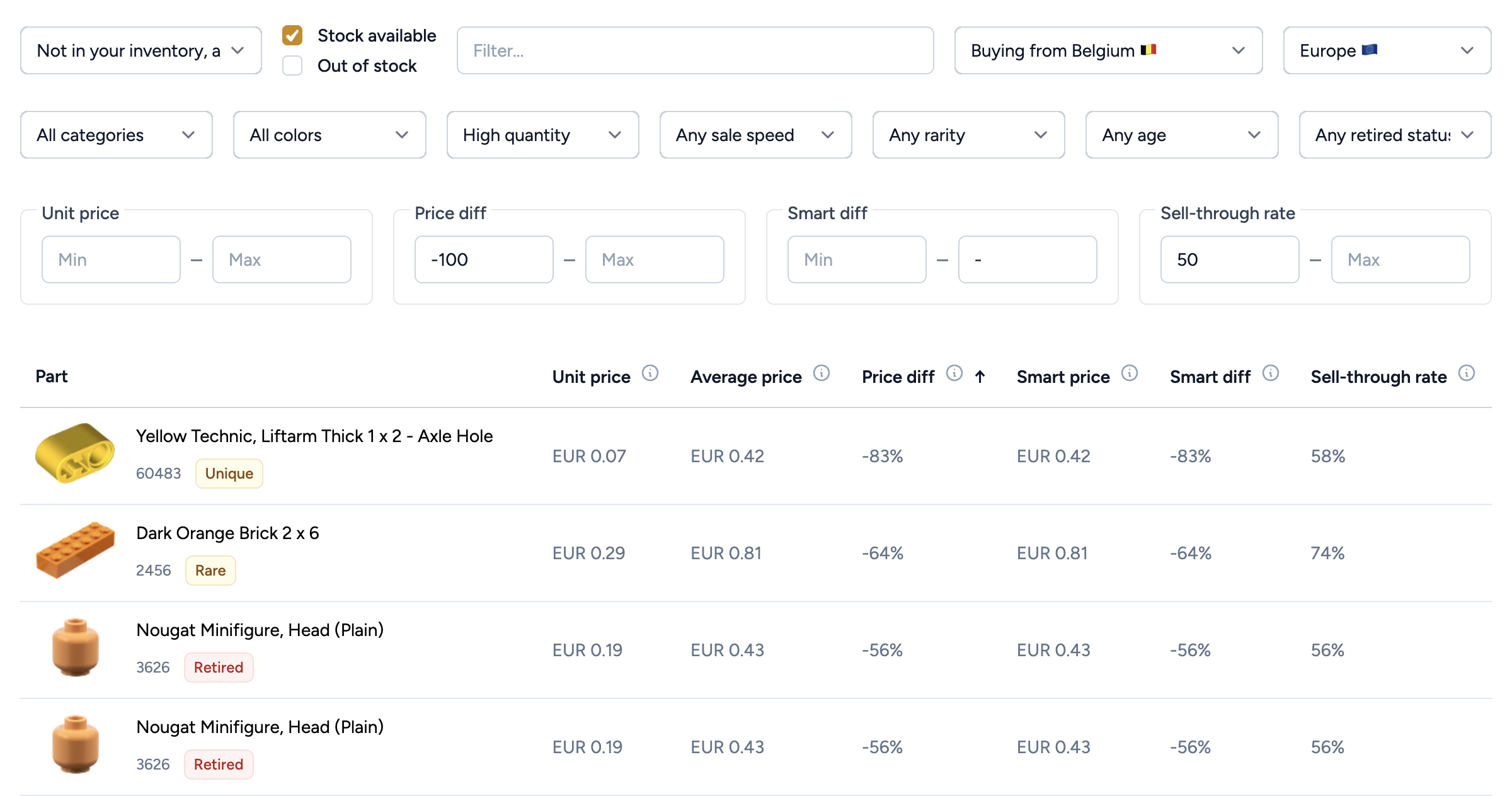
Using filters such as High Quantity, minimum STR, and negative Smart Diff will help you narrow down the list to truly high‑potential buys.
Summary
The Pick A Brick module makes it incredibly easy to locate undervalued parts on LEGO’s online store and compare them with real BrickLink market data. With the combination of regional pricing, your own smart pricing formula, and BL Metrics’ powerful filters, you can source parts confidently and profitably.
Use this tool regularly to spot opportunities, avoid slow movers, and grow your store with high‑margin inventory.