Store Arbitrage is available in two modes: Manual and Automated. Manual mode lets you analyze a specific store on demand, while Automated mode continuously scans stores matching your criteria and presents opportunities to you.
Manual arbitrage
Manual arbitrage compares another store's inventory against your Smart Pricing formula. For each item listed in the selected store, we compute the expected selling price you would assign based on your rules, and then compare it to the buying price in that store.
You'll define:
- The store you want to analyze
- Your pricing formula (automatically selected)
- The minimum markup you want (for example, at least 50% profit)
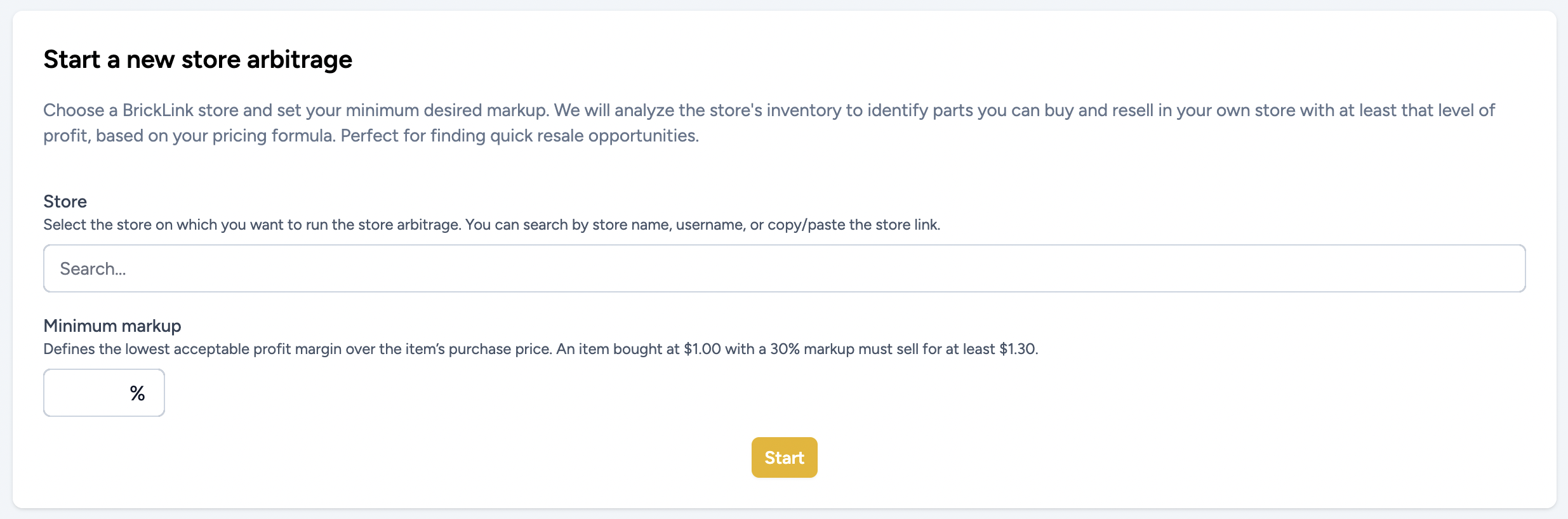
Once the analysis is complete, you'll get a table listing all potentially profitable items (parts and minifigures) based on your criteria.
Browsing the results
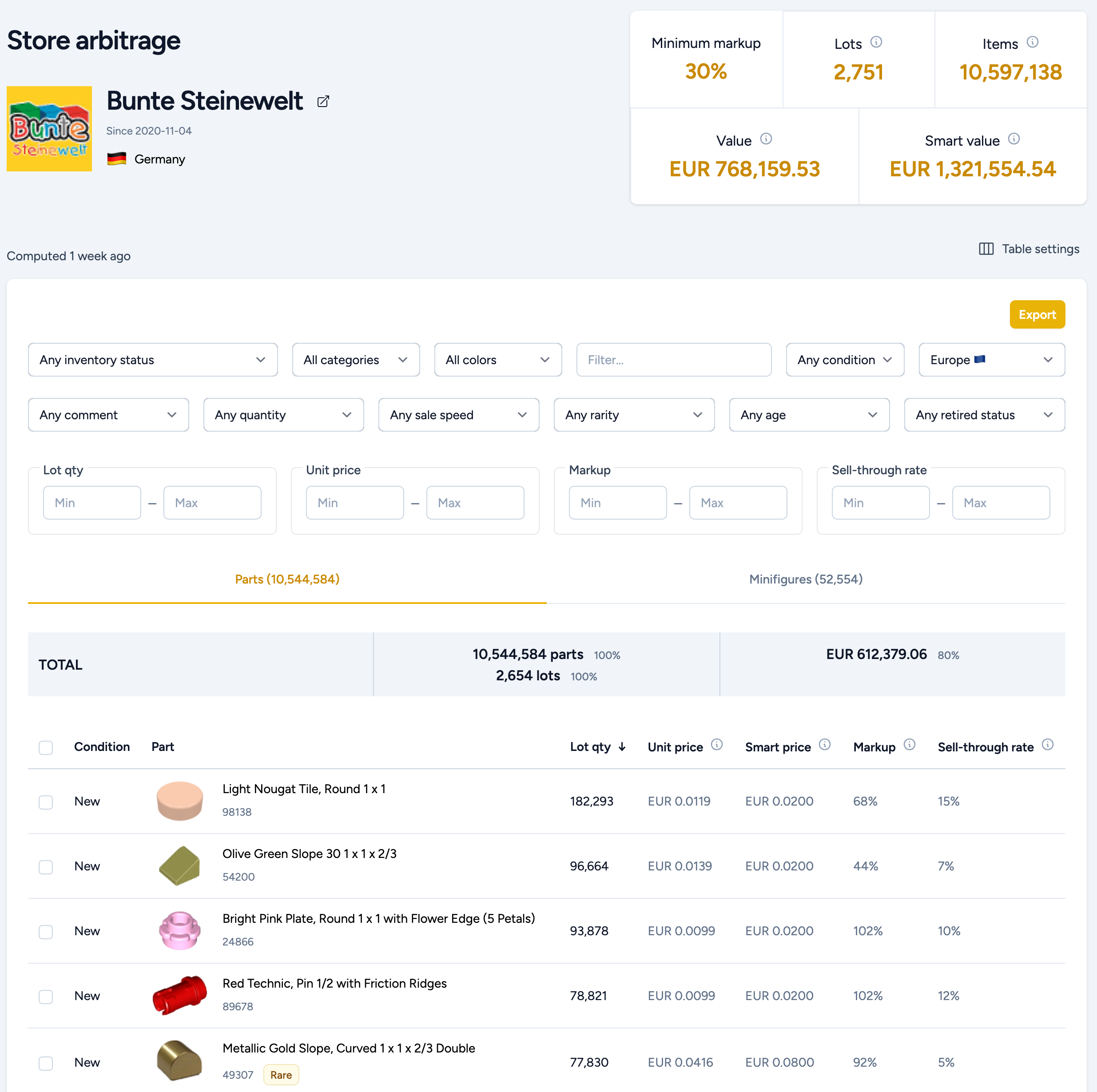
The results are displayed in the usual BL Metrics layout, enriched with key columns:
- Store price: the current price in the selected store
- Your smart price: calculated using your pricing formula
- Markup: the percentage difference between the store price and your smart price
You'll also see all standard pricing data, such as 6-month averages, sell-through rates, demand, and more, so you can quickly judge if the item is truly worth buying.
If an item has a remark (e.g. damaged or incomplete), it will be noted directly in the table. You can easily filter out or delete these rows to clean up your results and focus on the most interesting deals.
Exporting your selection
Once you've reviewed your list and possibly cleaned it up, you can export the results in two formats:
- BSX (BrickStore): If you want to do additional edits or planning before placing your order
- BrickLink XML: Ready to paste directly into your BrickLink wanted list
The smart price will also appear in the remarks field, making it easier to track your margin when browsing the store manually.
Automated arbitrage
Automated arbitrage takes the manual work out of finding opportunities. Instead of searching for stores yourself, you configure your preferences once and we continuously scan BrickLink stores that match your criteria. When we find profitable items, they appear in your results list automatically.
Setting up automated arbitrage
To get started, navigate to the Automated arbitrage page and configure your settings:
Target settings
- Ships to: Your country. Only stores that ship to this location will be analyzed.
- Minimum markup: The lowest acceptable profit margin. For example, 30% means an item bought at $1.00 must sell for at least $1.30.
Store filters
- Store countries: Select which countries' stores should be analyzed.
- Total items / lots / orders: Optionally filter stores by size or activity level.
Item filters
- Condition: Choose to analyze new items, used items, or both.
- Item types: Select parts, minifigures, or both.
- Categories: Optionally limit to specific part or minifig categories.
- Pricing filters: Filter by sell-through rate (STR), quantity sold, and current listings in a specific region.
- Lot quantity: Filter items by the quantity available in a lot.
- Inventory status: Filter by whether items are already in your inventory.
How automated scanning works
Once enabled, we scan stores matching your criteria throughout the day. Each store analysis counts toward your daily limit, which is shown on the automated arbitrage dashboard. Results are organized by store and date, making it easy to review recent opportunities.
There is a daily limit on the number of stores we check for you. Contact us if you need to increase your daily limit.
Reviewing automated results
Your automated arbitrage results appear in a list showing each scanned store, the number of profitable items found, and the total potential value. Click on any result to see the full breakdown and export the items just like with manual arbitrage.
What's included (and what's not)
- Only parts and minifigures are analyzed, not sets or other item types
- All prices include VAT if the store has it enabled
- Shipping costs are not taken into account, be sure to include them in your final decision
Conclusion
The Store Arbitrage tool gives you a clear advantage when sourcing inventory. Use manual mode when you have a specific store in mind, or let automated mode do the heavy lifting by continuously finding opportunities for you. Whether you're scouting opportunities, filling gaps, or simply looking to increase your margins, this feature lets you buy smart, and sell even smarter.