How it works
We sync your BrickLink and BrickOwl orders along with your store inventory, look at everything you have sold over the last six months, and compare that against what you are still holding. From your sales we estimate a monthly demand rate for each part, and anything where your stock will not last long enough gets flagged.
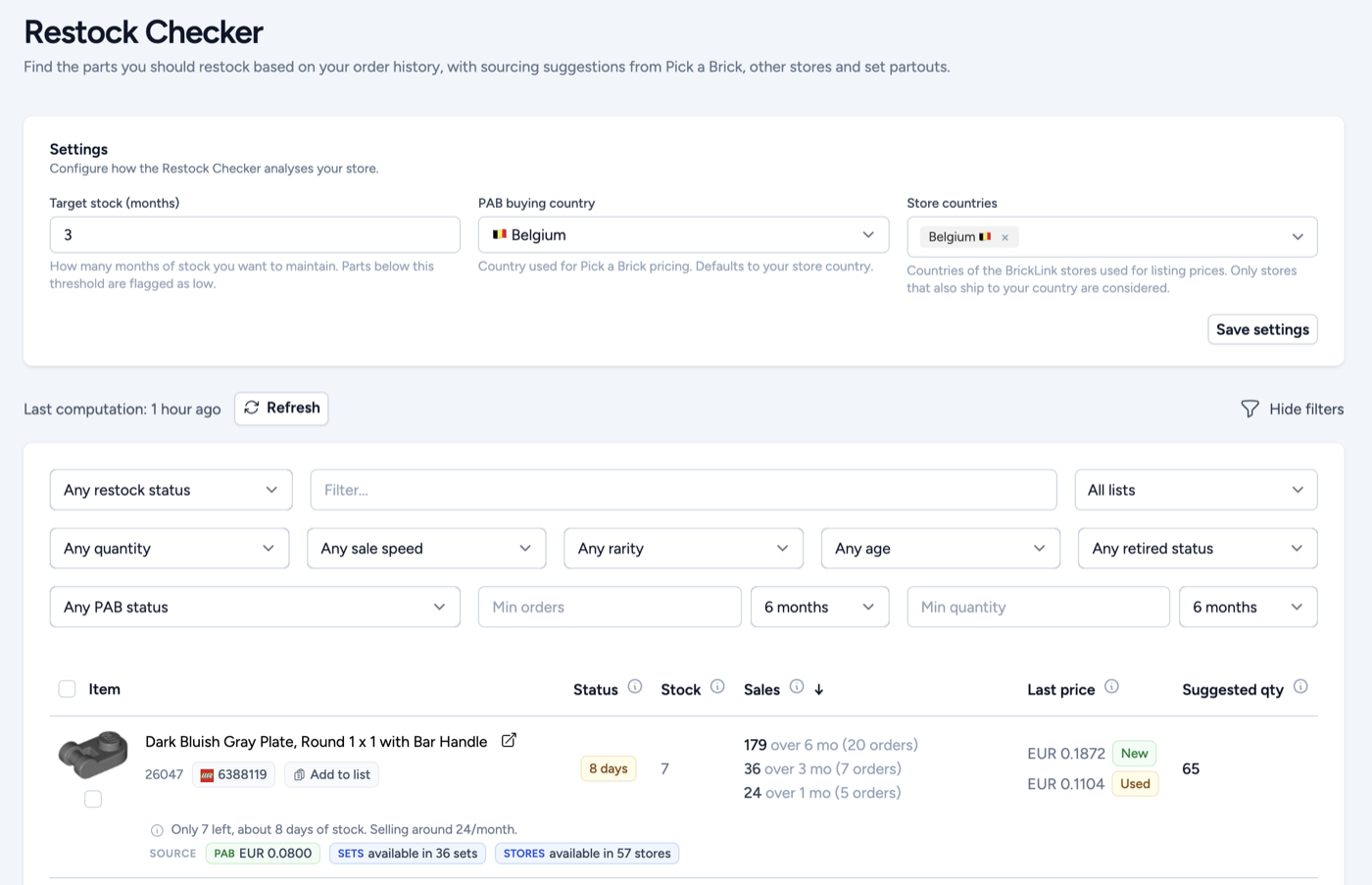
The estimates get sharper the busier your store is. The Restock checker is built for stores doing several orders a day, where there is enough history for a monthly rate to mean something. It still works on a smaller store, and the sold out list is worth acting on whatever your size, but treat the suggested quantities as a guide rather than a number to order against blindly.
The tool currently covers parts only. Minifigures, sets and other item types are not included yet.
Your settings
Three settings shape everything the Restock checker tells you:
- Target stock: how many months of stock you want to hold, three by default. Any part that falls below this is flagged, and it's also what the suggested quantity aims to restore.
- PAB buying country: the country we price Pick A Brick against, so the comparison against your own selling price is the one you would actually pay. Defaults to your store's country.
- Store countries: which countries we look in when suggesting BrickLink stores to buy from, so you only see stores you would realistically order from.
When the data updates
Your orders are synced twice a day, and the Restock checker recomputes once a day from the most recent orders we hold. That means there can be some lag between a sale and the list reacting to it. If you need the current picture, the refresh button recomputes on demand.
Reading the list
Each row is one part, with its image, name, BrickLink number and LEGO element ID, plus the list badge if you want to add it to one of your lists.
Status
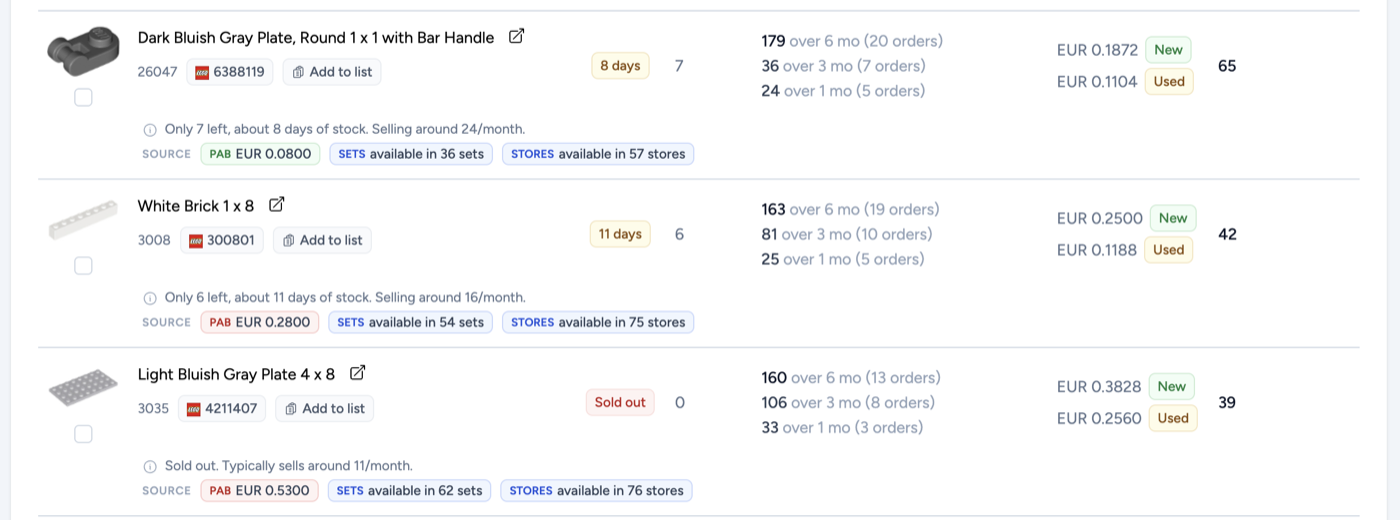
The status column shows how many days of stock you have left at your current rate of sale, or Sold out in red when there is nothing left. Behind that sit the three statuses you can filter on:
- Sold out: nothing left in your inventory. Sales you are losing right now.
- Critical: under thirty days of stock left at your current rate of sale.
- Low: more than thirty days, but still under the target you set.
Each row also carries a plain summary of its own situation, along the lines of "Only 7 left, about 8 days of stock. Selling around 24/month", so you can read a row without interpreting the columns.
Stock and sales
Stock is what you currently hold, combining new and used. Sales shows what you have sold over one, three and six months, with the number of orders behind each figure.
Click the sales figure for the full history: unit price, quantity, date, condition, and whether the order came from BrickLink or BrickOwl. It's worth a look before committing to a large order, because thirty units sold across twenty orders is a very different part from thirty units sold in one.
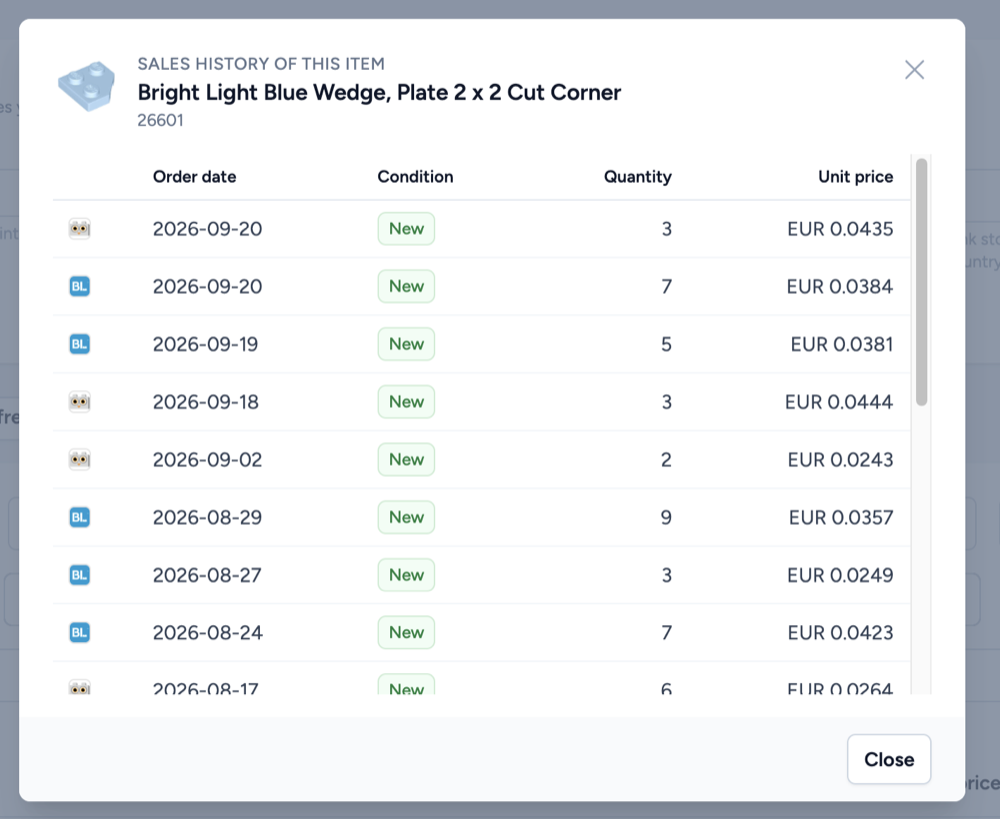
That difference is built into the estimate. Your demand rate is the highest of your six-month, three-month and one-month rates, so a part that is picking up recently is not held back by a quiet six months. Safeguards are applied so a single unusually large order cannot skew the result.
Demand badges
Some parts carry a badge showing how their demand is moving:
- Surging: the most recent two-month period is at least double the oldest one, with growth across all three periods.
- Trending: the same pattern, but at least thirty percent growth rather than double.
- New demand: nothing sold in the first two months of the window, but the part has been selling since.
Only parts with at least twelve sales across four or more orders are evaluated, so a badge is never the result of one or two lucky orders.
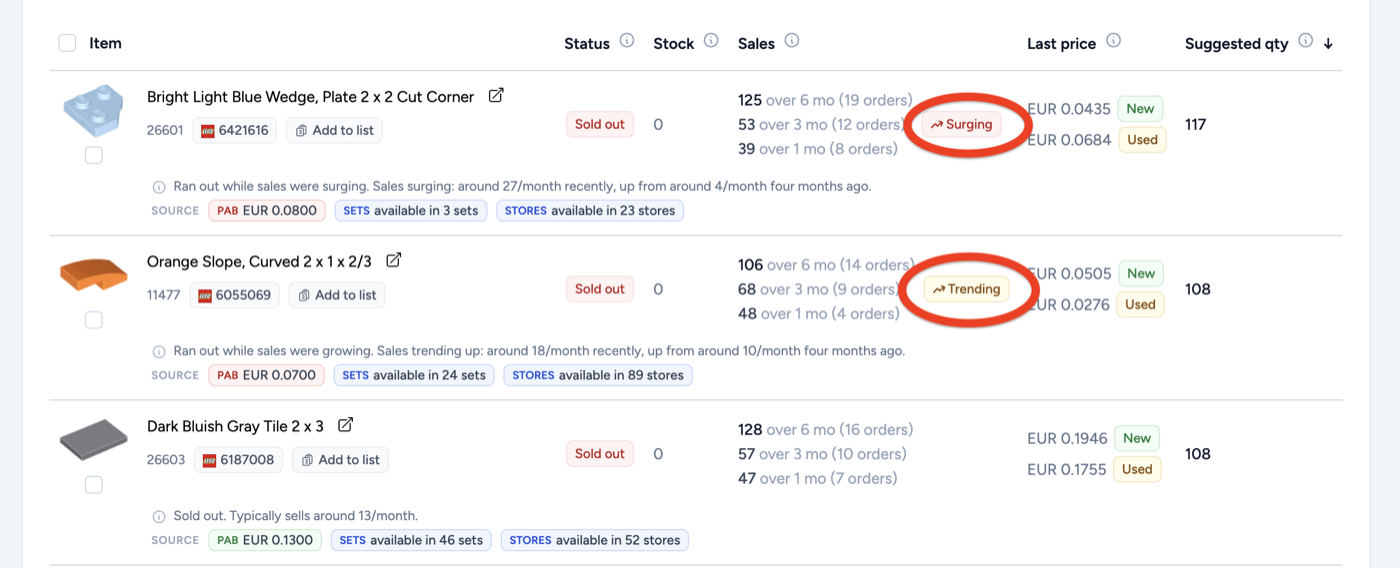
The summary line spells the badge out in numbers, for example "Ran out while sales were surging. Sales surging: around 27/month recently, up from around 4/month four months ago". A part in that state is worth reordering quickly, and probably in more depth than your usual target.
Last price and suggested quantity
Last price is the unit price from your most recent sale, per condition. Suggested qty is how many units to order to get back to your target: your target months multiplied by your monthly demand, minus what you currently hold.
Finding where to buy
This is where the Restock checker stops being a report. Each row offers three sourcing routes.
Pick A Brick
If the part is available on Pick A Brick, a badge shows it, and the color is the decision. Green means LEGO sells it for less than you last sold it for, so there is margin. Red means the Pick A Brick price is above your own selling price, so it is not worth sourcing there however available it is.
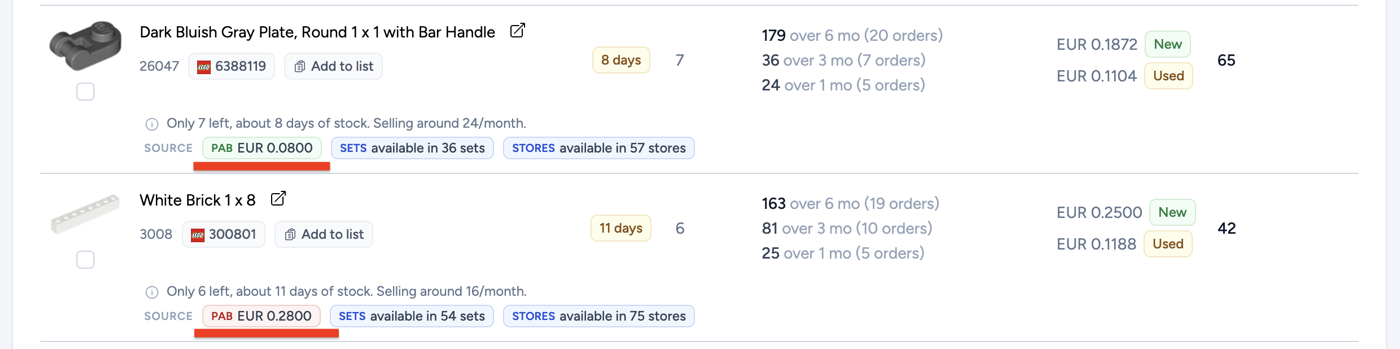
The two parts above make the point. The first sells for EUR 0.1872 and costs EUR 0.0800 on Pick A Brick, so the badge is green. The second sells for EUR 0.2500 and costs EUR 0.2800, so the badge is red: available, but you would be buying at a loss.
Sets
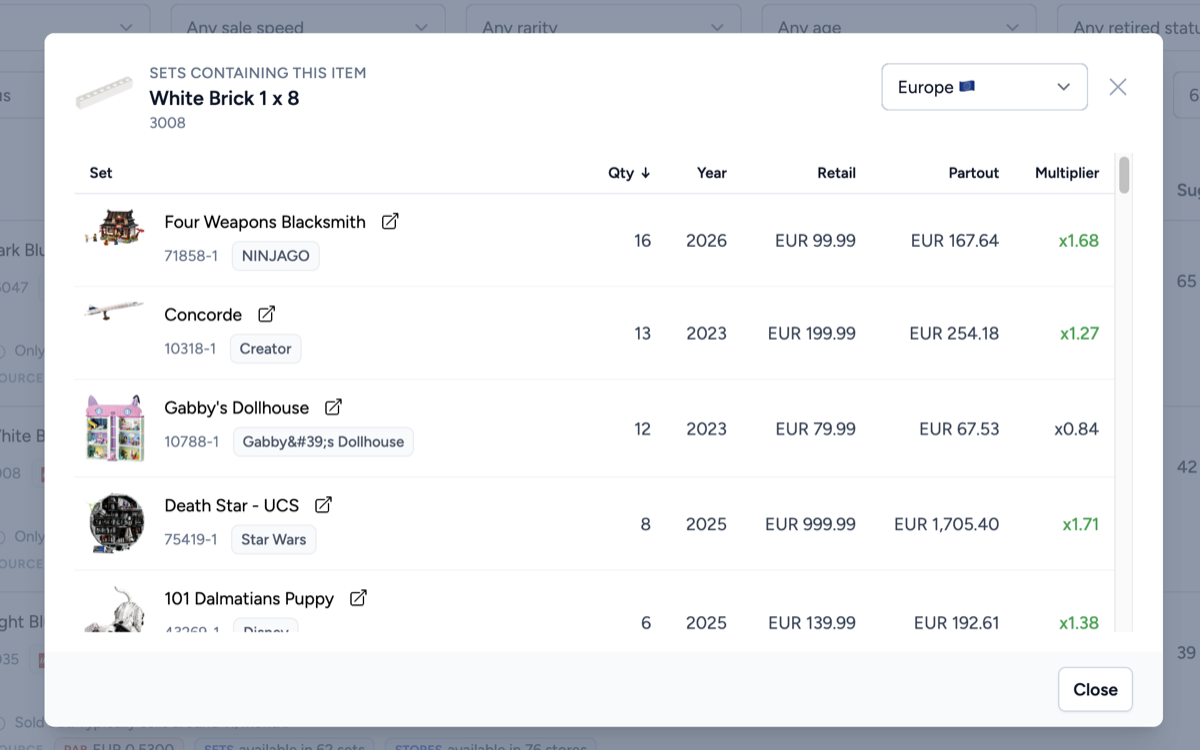
Shows the sets containing that part, highest quantities first, with the release year, the retail price, the part out value and the multiplier between the two. A quick way to judge whether parting out a set is the sensible route to a part you need: a set holding sixteen of your part at a 1.68x multiplier pays for itself twice over.
Stores
Searches BrickLink stores in the countries from your settings. Two of the filters are pre-filled for you, which is what makes this fast:
- Minimum quantity is set to the suggested quantity, so you only see stores that can cover your whole order in one go.
- Maximum price is set to your own last selling price, the number a purchase should never exceed.
Condition defaults to any, and you can narrow it to new. See the Store arbitrage guide for the wider version of this workflow.
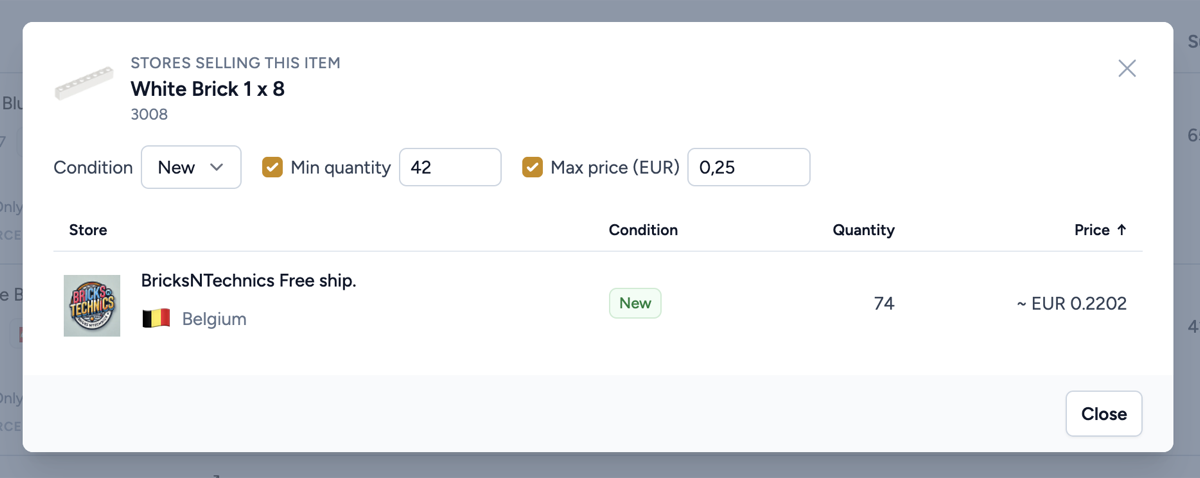
Both filters can be unticked if you want the wider picture, but left as they are the result is a short, decisive list. Here a single Belgian store can cover all 42 units at EUR 0.2202 against a EUR 0.25 ceiling.
Sorting and filtering
The Restock checker is a normal BL Metrics table, so you can sort by any column and configure it in the table settings. See the Tables tips and tricks guide for the detail. Sorting by status puts the sold out parts on top, and sorting by suggested quantity surfaces the biggest orders you need to place.
On top of the filters you know from the parts table (quantity, sale speed, rarity, age, retired status and Pick A Brick availability, including whether it is cheaper or more expensive than your own price), you get:
- Restock status: sold out, critical or low.
- Text search on part number or name.
- Lists: include or exclude any of your lists.
- Range filters on the number of orders and the quantity sold over one, three or six months.
A good use of the lists filter: keep a list of the parts you have already ordered, then exclude it here. Everything arriving next week stops cluttering the list, and you only see what still needs buying.
Summary
The Restock checker turns your own sales history into a buying list: what you have run out of, what you are about to run out of, how much to order, and where to get it. The recommendations are a guide rather than a guarantee, so use your own judgement on the big orders, but the sold out list alone will usually pay for the time you spend here.