Your inventory is the most valuable thing in your Bricklink store. Behind every lot there are hours of sorting, identifying, counting, pricing and writing remarks. Yet most sellers don't have a single copy of it outside Bricklink.
In this guide, we'll see why a backup matters, how to make one by hand, and how to make sure you never have to think about it again.
Why you should back up your inventory
In November 2026, Bricklink was down for about a week. No orders, no store, no access to your inventory. For many sellers, this was the moment they realized how much they depend on a single platform.
Two kinds of posts kept coming up in sellers groups during that week:
- "I want to sell on Brick Owl in the meantime, but I can't get my inventory." Brick Owl and other marketplaces can import a Bricklink inventory file in minutes. But you need the file, and the only place to download it was Bricklink, which was down. Sellers who had a recent export were back in business on another platform. The others could only wait.
- "What if Bricklink loses my data?" When a platform is down for days with little information, it's natural to worry. Will my lots still be there? Will quantities, prices and remarks be right? Without a copy, there is no way to check, and no way to restore anything if something went wrong.
In the end, Bricklink came back and inventories were intact. But an outage is not the only risk. A wrong mass update, a pricing tool that goes wrong, a lot deleted by mistake: a backup protects you against all of these, including your own mistakes.
A backup is cheap insurance. It costs almost nothing to keep, and it can save weeks of work the day you need it.
Option 1: Export your inventory manually from Bricklink
Bricklink lets you download your whole inventory as a file. Here's how:
- Log in to Bricklink and open the My Store Inventory: Download page.
- Choose the XML format. This is the format Bricklink uses for its own mass upload, and the one Brick Owl and BrickStore can import.
- Leave every filter on All to include every item type (parts, minifigures, sets, instructions, boxes, gear...), and keep Include My Stockroom Inventory checked if you use stockrooms.
- Download the file and save it somewhere outside your computer too, such as cloud storage.
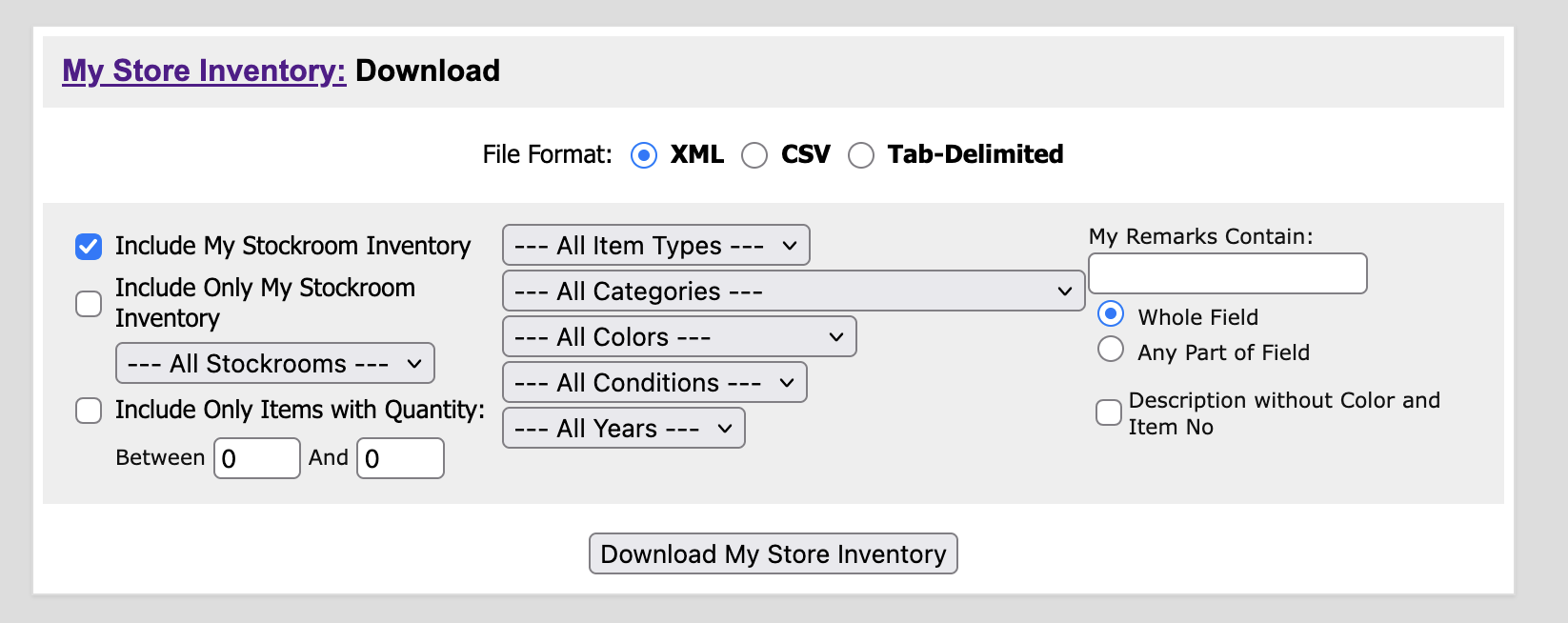
The XML file contains, for each lot, the item number, color, condition, quantity, price, remarks, description and more. With it, you can rebuild your store on Bricklink, or open a store on another platform.
The problem with manual backups
A manual export works. The problem is that it relies on you.
Most sellers who start doing it are very disciplined for a few weeks. Then a busy month comes, an order rush, holidays, and the export gets skipped once, then twice, then forgotten. And you usually find out the day you actually need the backup, when your last file is six months old and half your inventory has changed since.
A backup is only useful if it's recent. That's why the best backup is one you don't have to think about.
Option 2: Automatic backups on BL Metrics (free for all users)
If your store is connected to BL Metrics, you already have automatic backups, for free, whatever your plan.
How it works
When your store is connected with your Bricklink API key, BL Metrics syncs your inventory automatically several times a day (about every 6 hours), and each time you refresh it from the Store inventory page. At each sync, we save a copy of exactly what Bricklink returned: every lot of every item type, including parts, minifigures, sets, instructions, boxes, gear and catalogs.
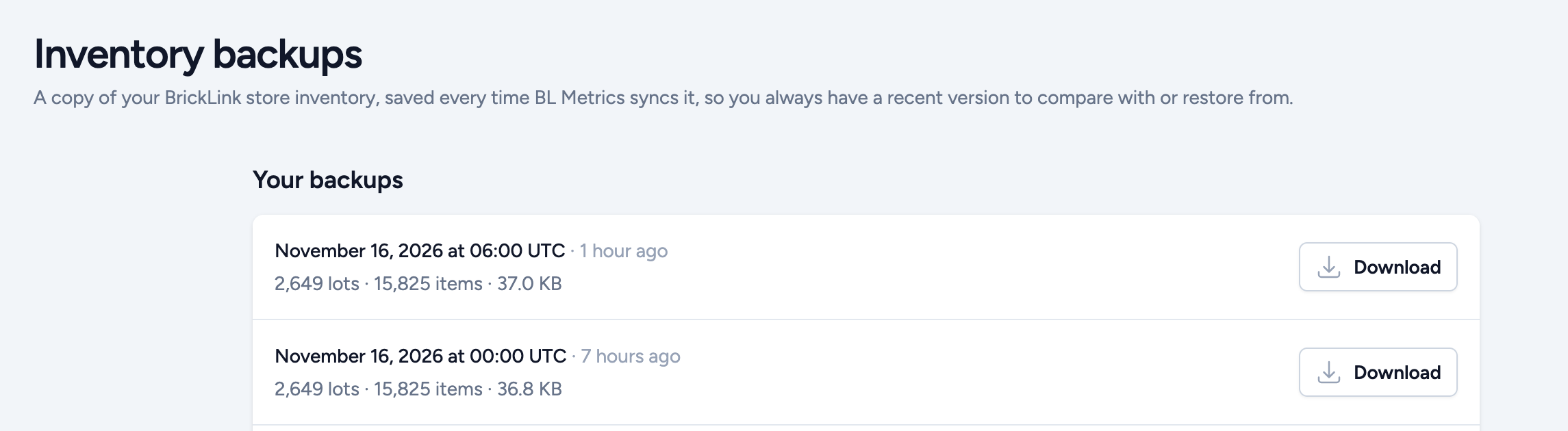
You'll find your backups in the Tools menu, under Inventory backups. Each one shows its date, number of lots, number of items and size, with a download button.
What's inside
Each backup is a zip file with one Bricklink XML file inside. It lists every lot with its:
- lot ID, item number, color and condition
- quantity and price, sale percentage and tier prices
- description and remarks
- stockroom, retain flag, cost and date added
This is the same format as Bricklink's own export, so you can import it into BrickStore, use it with Bricklink's mass upload and update tools, or upload it to Brick Owl.
How long backups are kept
We keep 7 days of backups, counted from your most recent one rather than from today. This matters: if syncing stops, for example while Bricklink is down or because your API key stopped working, your last week of backups stays available until new ones replace it. During an outage, you always keep the last good copy.
Restoring a backup to Bricklink? Always compare it with your current inventory first. Uploading a backup over an inventory that is still intact creates duplicate lots.
If you'd rather not have BL Metrics keep a copy of your inventory, you can turn backups off from the same page. This deletes the backups we already keep for you.
Option 3: Our dedicated tool, backup.blmetrics.com
Not every seller uses BL Metrics, and some want backups kept for longer than a week. So we built a separate tool, dedicated to one thing: Inventory Backup. It's free for every Bricklink seller, with or without a BL Metrics account.
Getting started
- Go to backup.blmetrics.com and enter your email address. There is no password: we send you a link to sign in.
- Create a Bricklink API key for our server and paste it in. The tool guides you step by step, it takes about two minutes.
- Pick a schedule, and your first backup runs right away.
Choose your schedule
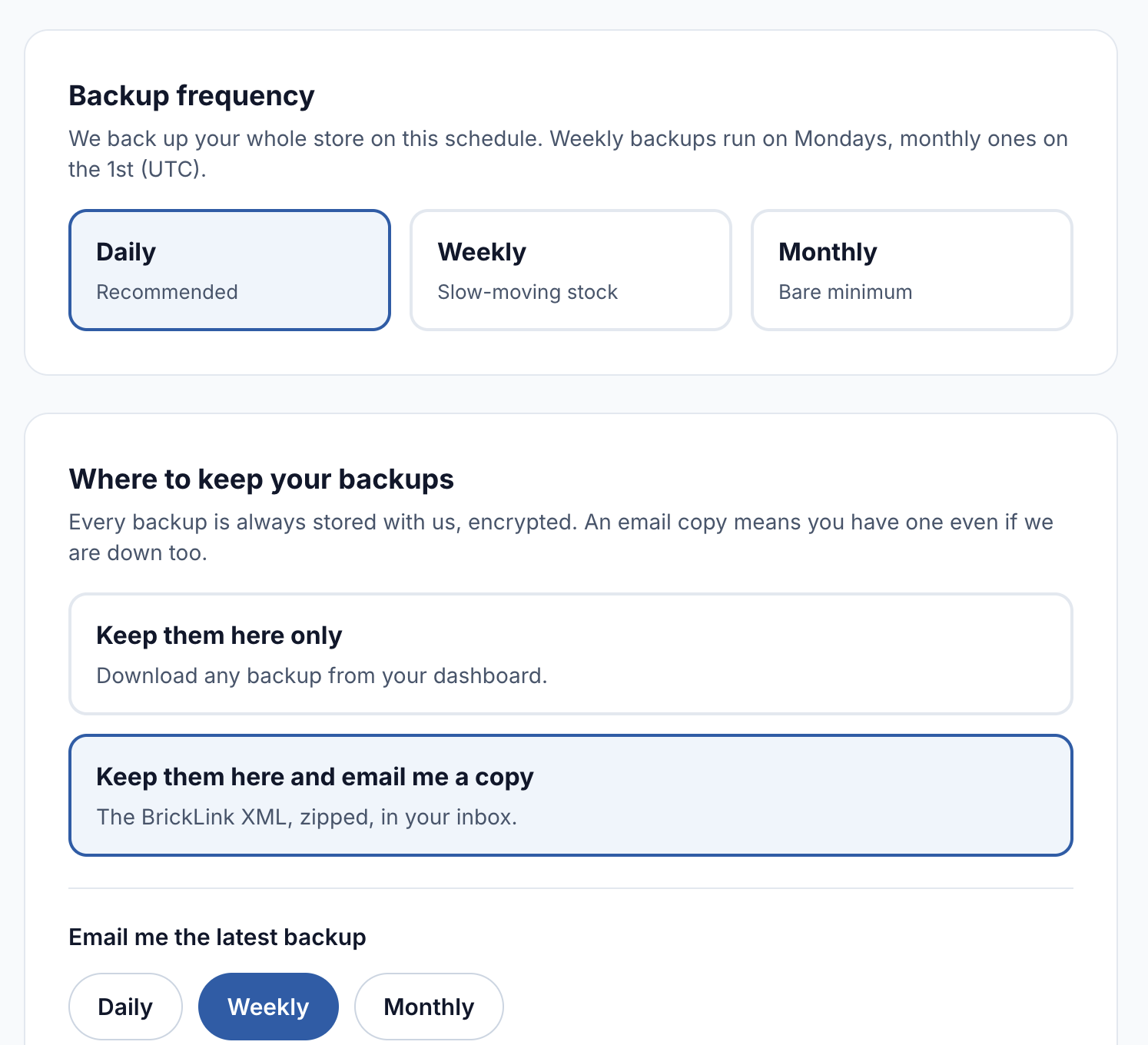
You can back up your whole store every day (recommended), every week (on Mondays) or every month (on the 1st). You can change it at any time from your settings.
Keep a copy in your inbox
Every backup is stored on our side, encrypted. But what if our tool is down at the same time as Bricklink? For that case, you can also get the latest backup by email, daily, weekly or monthly, with a summary of what changed since the previous one. The zipped file comes as a simple attachment.
You can also get an alert if backups stop working, for example when your API key is revoked or when Bricklink is down for hours.
A long history
The tool keeps every backup for 30 days, then one a week up to 12 weeks, then one a month for 12 months. So if you notice a problem weeks later, such as a batch of lots that disappeared or prices that changed without you noticing, you can go back and find the version you need.
Is it safe?
The tool only reads your inventory. It never changes a lot, and your API key is encrypted. You can delete your account, and every backup with it, at any time.
Option 4: Use an inventory management system
Some sellers go one step further and manage their inventory outside Bricklink entirely, with a tool such as Bricqer. These systems keep your inventory in their own database and push it to one or more marketplaces, such as Bricklink and Brick Owl.
This has a nice side effect: your inventory doesn't live only on Bricklink anymore. When Bricklink is down, your data is still in your management tool, and if you already sell on several platforms, your other stores keep running.
These tools are mostly paid, and they change the way you work every day, so they make sense when you want multi-platform selling or better order and inventory management, not only a backup. And even then, a regular export from your management tool is still a good idea: a backup should never depend on a single service.
Which option should you choose?
| Cost | Automatic | History kept |
|---|
| Manual export from Bricklink | Free | No | As long as you keep the files |
| BL Metrics backups | Free for all users | Yes, about every 6 hours | 7 days |
| backup.blmetrics.com | Free | Yes, daily, weekly or monthly | Up to 12 months, plus email copies |
| Inventory management system | Usually paid | Yes | Depends on the tool |
There's no wrong answer, as long as you have at least one recent copy of your inventory that doesn't live only on Bricklink. If you're a BL Metrics user, you're already covered. If you want a longer history or a copy in your inbox, set up Inventory Backup in two minutes. Either way, the next time Bricklink goes down, you'll be ready.